

Before you start
You'll need Nave on an iPhone that meets its requirements, microphone permission, and an available AI provider for processing your note. Choose a provider in Nave's settings and agree to AI for the space you're using.
Apple Intelligence runs on a supported iPhone. Nave's built-in AI and your own provider key need an internet connection. Saving your words and processing them are separate steps: a saved note may still be waiting for AI.
1. Say the action, not just the topic
A useful voice note can include both the thought and what you plan to do about it. Name the thing you intend to do, and say a date or time if one matters.
“The kitchen needs more light. Measure the drawer runs and the window reveal on Friday. Ask the builder what removing the wall cupboards would do to the quote.”
This is an illustrative recording prompt. It gives the app two concrete actions to look for: measuring the space and asking the builder. “Think about the kitchen” leaves much more to interpretation.
2. Save the note and review its actions
Finish recording and open the saved note. With AI available, Nave adds a title, summary and key points, and picks out actions from the text.
Look for the Actions section in the note. Check that each item describes what you actually meant. An AI-generated task can omit a detail, misunderstand a name or interpret an uncertain idea as a commitment.
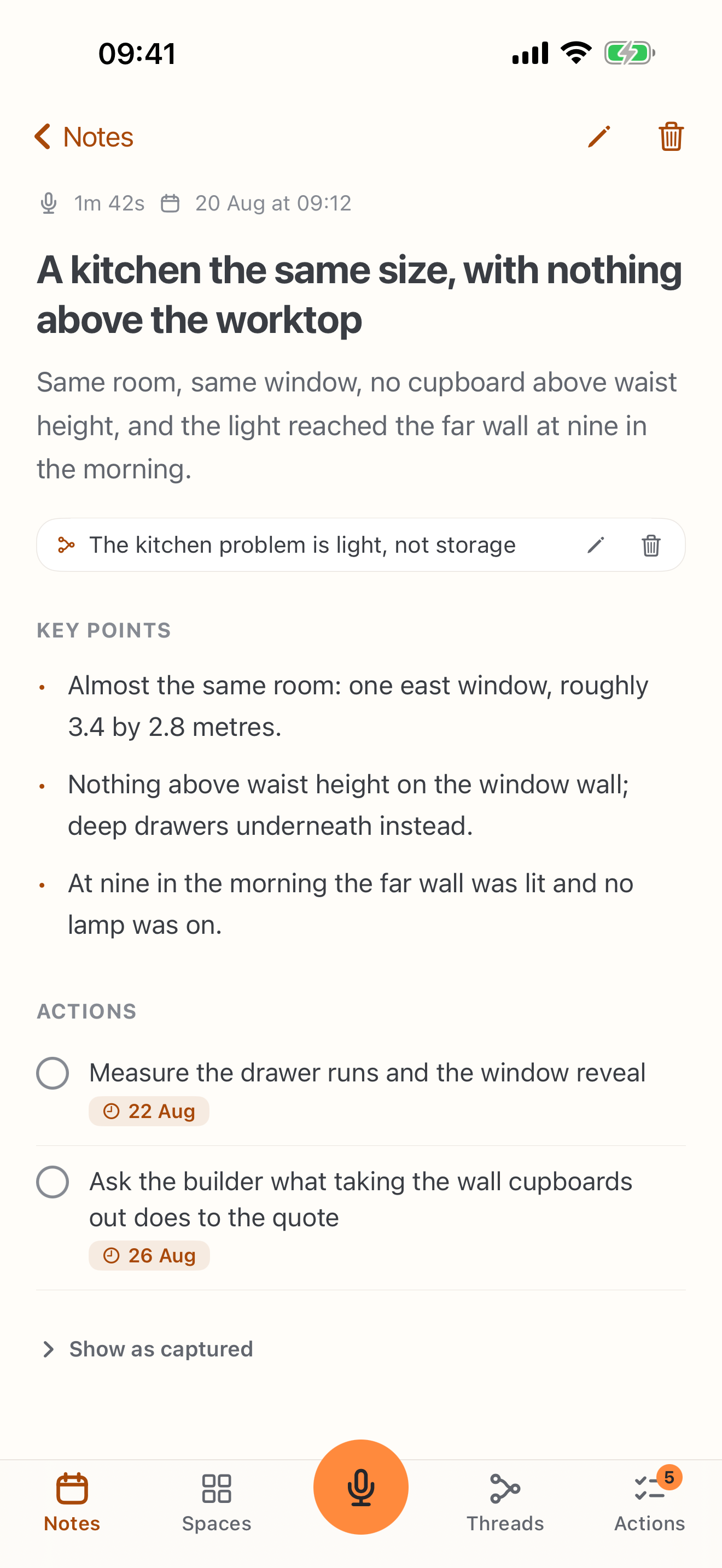
The note above shows two actions with dates. Your results depend on what you say and the provider you use; this is an example, not a fixed output template.
3. Add a reminder when the time matters
An action in a note and a scheduled reminder are different things. If you want a reminder, enable reminders in Nave and mention a time in the note. Nave can offer to add it to Apple's Reminders app.
Allow Reminders access when prompted, then check the reminder's wording and date in Reminders. For an important deadline, confirm that it exists instead of assuming every extracted action has been scheduled.
If access was previously refused, open iPhone Settings › Nave › Reminders. Nave adds reminders on your device and does not read your existing reminders. See how reminders are handled.
If the action doesn't appear
- The note has no summary either: check the AI provider for this space, its availability, and any allowance message in the app. The original words can still be saved.
- The transcript is wrong: check the spoken text first. An incorrect name or date can carry through into the action. For language settings, see voice troubleshooting.
- There is an action, but no reminder: check that reminders are enabled, access is allowed, and your note included a time.
- The task is too vague: use a clearer intention in your next note, such as “ask the builder for the revised quote,” rather than “sort out the kitchen.”
For a problem that persists, contact support with the app version and what happened. You don't need to send the private contents of a note.
What happens to the recording?
By default, voice is transcribed on your iPhone. Optional cloud transcription settings can send the audio to a provider. AI processing of the resulting text also depends on your selected provider. Read the voice privacy details before choosing a setup for sensitive notes.
For a broader walkthrough of capture and summaries, explore voice notes on iPhone. To understand how later notes connect to this one, see automatic note organization.